| English | Japanese |
|
Yesterdays access |
|
| Page Top | [Lily Diary.】 A diary of life in Mindanao. |
| 26/11/07 | SatBox_Ver0.1.1c-beta IC-9700 Test Version |
| 26/11/07 | SatBox User Guide |
| 26/11/03 | An FT-847 for SatBox Development |
| 26/11/02 | Buying a ZT219 Digital Multimeter |
| 26/10/28 | Building a home server using Linux |
| 26/10/27 | Repeater Controller Features and Settings |
| 26/10/27 | Repeater Controller Board and Firmware |
| 26/10/26 | JTDX Auto Run Ver0.7.7 |
| 26/10/26 | WSJT-X Auto Run Ver0.1.6 |
| 26/10/22 | Memories of UNIX and Networking from My Yonezawa Ham Shack |
| 26/10/20 | Acquiring a YAESU FT-2600M for a Repeater |
| 26/10/19 | Rotator Relay Interface for Sale |
| 26/10/18 | Kenpro Rotator Interface KiCAD DATA |
| 26/10/17 | JOTA in Indonesia: Jamboree on the Air |
| 26/10/17 | You Can Now Leave Comments |
| 26/10/11 | Installing Arduino IDE |
| 26/10/09 | DXCC200 Sticker Arrives from ARRL |
| 26/10/08 | SatBox Cloud Released |
| 26/10/06 | Bought an ECS LIVA Z Mini PC on Yahoo Auctions |
| 26/10/05 | QSO with C5R in The Gambia |
| 26/10/04 | Installing Raspberry Pi OS |
| 26/10/02 | Repeater Controller Features and Settings |
| 26/10/01 | Repeater Controller Board and Firmware |
| 26/09/30 | Ordering PCBs and Assembly from JLCPCB |
| 26/09/24 | UNITRUST Electronics Parts Shop |
| 26/09/22 | Kenpro Rotator Interface |
| 26/09/18 | SatBox KiCad PCB and firmware |
| 26/09/14 | designed a circuit board for SatBox |
| 26/09/12 | Solar Power System Plan |
| 26/09/09 | Satellite SatBox Part 4 |
| 26/09/04 | My grandson Zion |
| 26/08/29 | Ham Fair 2026 to be held |
| 26/08/25 | QSO with RI1FJL from Franz Josef Land |
| 26/08/23 | Satellite QSO via RS-44 |
| 26/08/22 | Currently, Satellite VUCC46 |
| 26/08/16 | Satellite SatBox Development in Progress - Part 3 |
| 26/08/05 | IC-820H Receiver Sensitivity Test |
| 26/08/02 | Satellite SatBox Development in Progress - Part 2 |
| 26/07/16 | Delivery of the 3D printed panels |
| 26/07/09 | Development of SatBox for satellites |
| 26/07/05 | Weather Monitor Indoor Unit |
| 26/06/30 | Creating data for 3D printers using FreeCAD |
| 26/06/16 | Installing an AS5600 magnetic encoder on a KR-500. |
| 26/06/05 | Grandson Zion's CQ |
| 26/06/04 | Replacing the potentiometer on the KR-500 elevation rotator |
| 26/06/03 | Making a Repeater Controller Pert4 |
| 26/06/01 | Weather Monitor software |
| 26/05/31 | Weather Monitor |
| 26/05/21 | JTDX Auto Run BUGFIX |
| 26/05/17 | Repair of satellite antenna system |
| 26/05/13 | Repair of Alinco DR130 |
| 26/05/07 | Making a Repeater Controller Pert3 |
| 26/05/03 | Indonesian satellite friend YC8RPK |
| 26/04/26 | DXCC200 achieved |
| 26/04/23 | Communication via ISS voice repeater |
| 26/04/20 | WSJT-X Auto Run Ver0.1.5 |
| 26/04/19 | Got an Alinco DR-130 |
| 26/04/15 | Clublog Charts |
| 26/04/10 | Regarding POC transceivers |
| 26/04/08 | Using KENWOOD AT-300 with YAESU radio |
| 26/03/17 | How to establish a radio club in the Philippines |
| 26/03/10 | KENWOOD AT-300 with YAESU radio |
| 26/02/27 | Philippine NTC Amateur Radio License Examination Question Bank |
| 26/02/20 | Package received from JK1SNS |
| 26/02/18 | Temporary License Renewal |
| 26/02/14 | Satellite Tracking Software SatTrack |
| 26/02/05 | Making a Repeater Controller Pert2 |
| 26/02/02 | CQ on satellite IO-86 |
| 26/01/27 | Shack & Repeater Controller |
| 26/01/16 | Making a Repeater Controller |
| 26/01/16 | Making aRotator Interface PCB |
| 26/01/10 | Satellite antenna installation |
| 26/01/08 | WSJT-X Remote Operation |
| 26/01/07 | JTDX Remote Operation |
| 26/01/04 | log_reciver_Ver2.6.6 |
| 26/01/04 | Tailscale VPN software for JTDX_Remote |
| Online Multiple Choice Reviewers to the Phil Amateur Radio Examination by 4F3EW A joint project by JI1FGX/DU9 and DV9JRD |
| Tailscale VPN for JTDX_Remote (January 4, 2026) | ||
|---|---|---|
Control JTDX from your smartphone while away from homeJTDX_Remote, currently under development, is a program for controlling automated JTDX operation from a smartphone browser. Actions such as “Auto operation” and “Stop” are sent to the Windows PC running JTDX. On the same home LAN, your smartphone can access the PC directly. When you switch to a mobile network, however, the PC's local LAN address is no longer directly accessible. For this setup, we use Tailscale to create a private network that lets us reach the PC while away from home. This guide installs Tailscale on both the Windows PC running JTDX_Remote and an Android smartphone. Tailscale provides the network connection; you must install and start JTDX_Remote separately. Connection used in this guideSmartphone browser → Tailscale VPN → JTDX_Remote on the Windows PC (port 8080) → JTDX Both the PC and smartphone need an internet connection. Router port forwarding is normally unnecessary for this setup. Before you start
Tailscale offers a free Personal plan for individual, non-commercial use. Check the official pricing page for current terms and limits, which may change. The screenshots below record the installation on January 4, 2026, and may differ from the current interface. 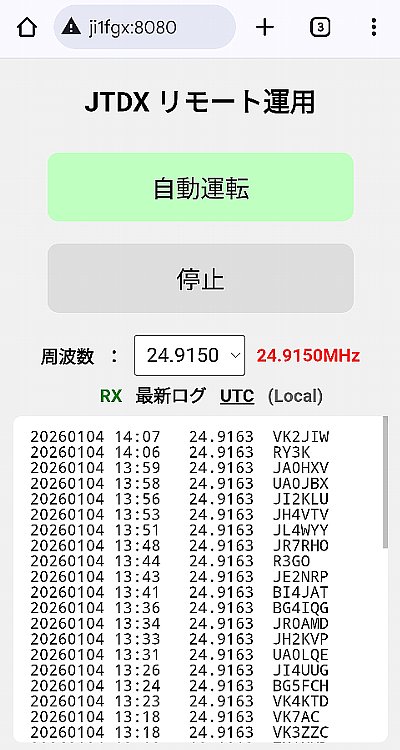 |
||
1. Get started with TailscaleOpen the official Tailscale website and select a button such as Start connecting devices. Follow the instructions to sign in and create your own Tailscale network. This network is called a “tailnet.” 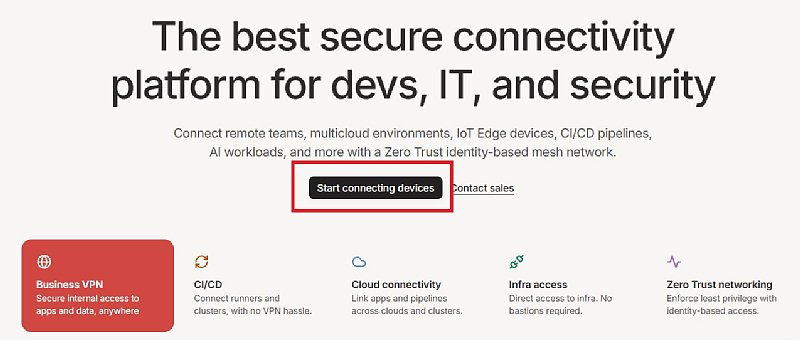 |
||
Choose your sign-in accountSelect the account you want to use from the available identity providers. The screenshot shows the authentication screen used for this setup. Use the same account on the Windows PC and smartphone so that both join the same tailnet. 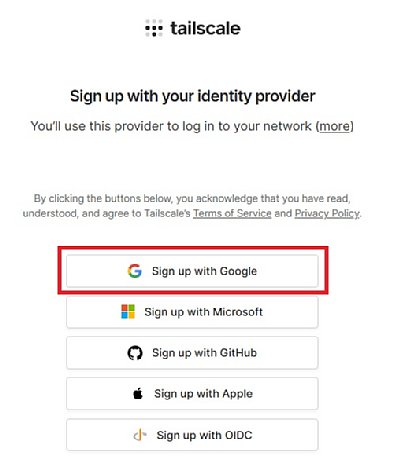 |
||
Complete identity verification if requestedYour identity provider may request additional verification. In this example, I selected a phone number to receive a verification code. Phone-based verification is not mandatory for every Tailscale user. Follow the authentication method required by your chosen account. 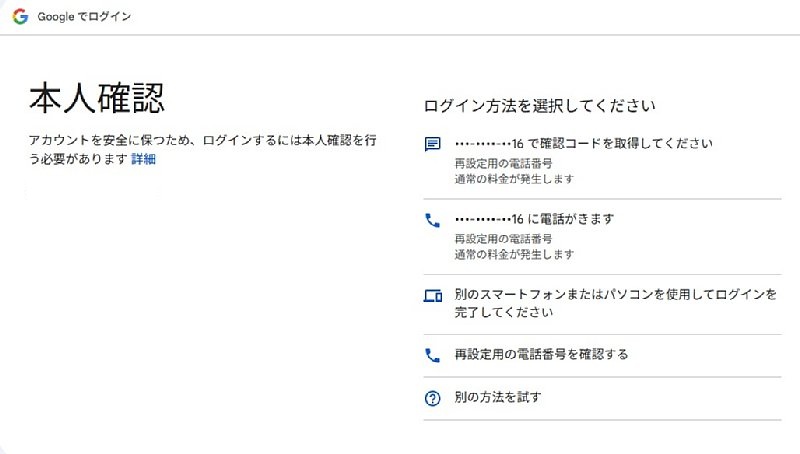 |
||
In this example, I entered the verification code received by SMS to complete authentication. The code is used for that sign-in attempt. Other authentication methods may display instructions for an authenticator app or another verification option. 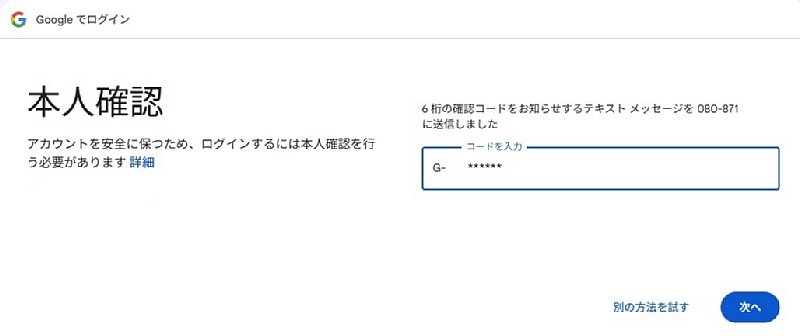 |
||
2. Install Tailscale on the Windows PCSelect Windows as the device platform and click the download button. Install Tailscale on the Windows PC that runs JTDX_Remote. You can also obtain the installer from the official download page. 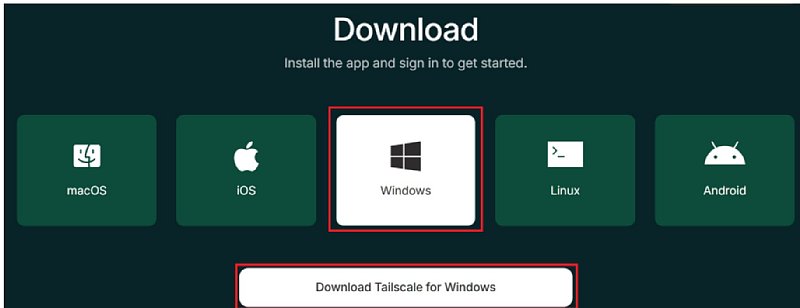 |
||
Run the downloaded Windows installer. If Windows displays a confirmation prompt, check that you obtained the installer from the official website before proceeding. 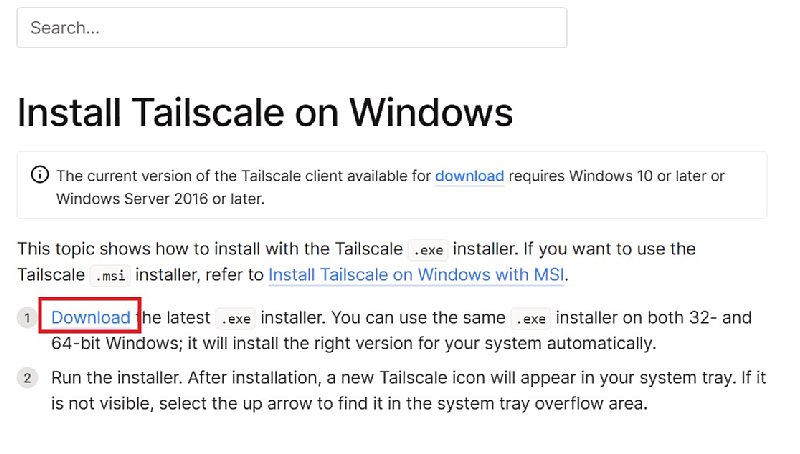 |
||
When Tailscale Setup opens, read the terms and other information. If you agree, check I agree and click Install. 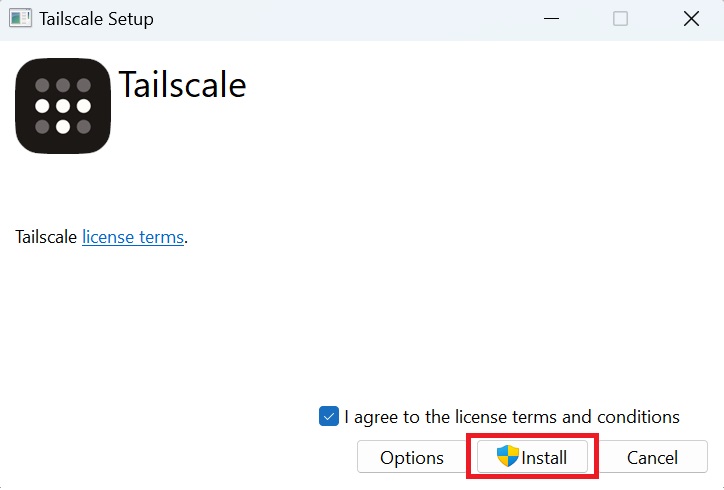 |
||
Add the Windows PC to your networkOnce installation is complete, click Get Started to begin setup. 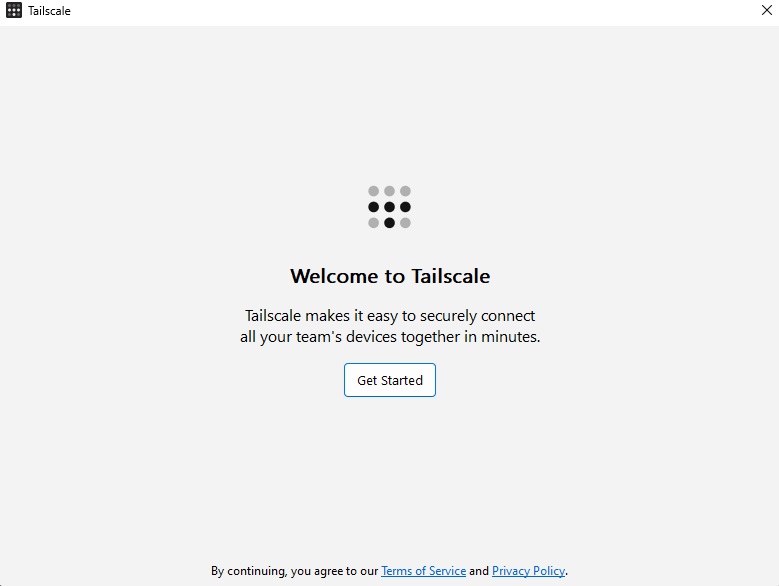 |
||
Click Sign in to your network. When the sign-in page opens in your browser, sign in with the account you selected earlier. 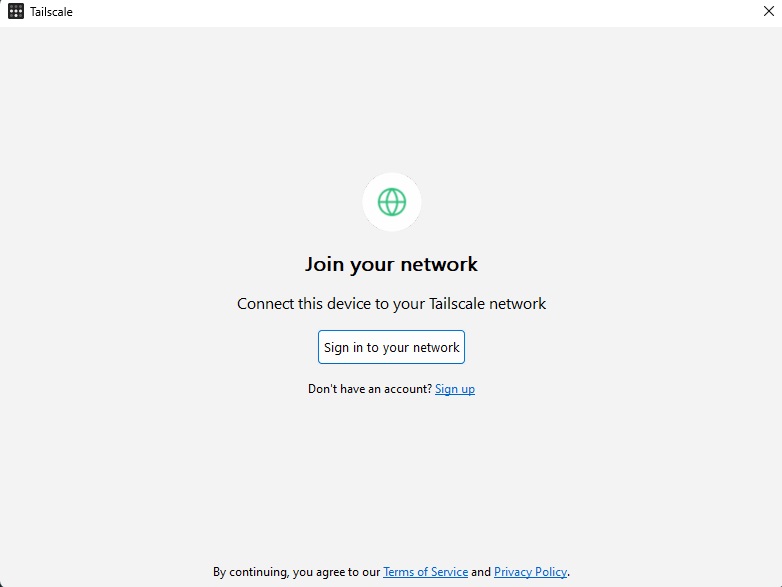 |
||
On the device connection confirmation screen, check the network you are joining and click Connect. This adds the Windows PC to your tailnet. 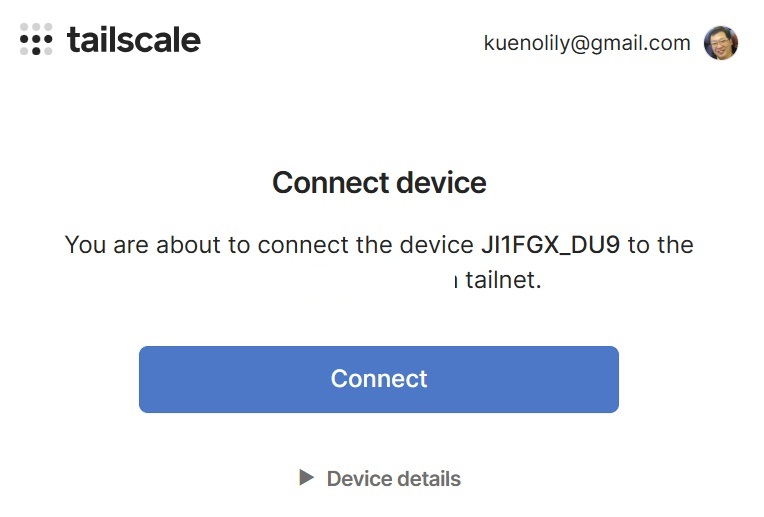 |
||
The PC name and its Tailscale IP address appear. Waiting for your second device means that the first device has been added and Tailscale is waiting for another device to connect. Next, add your smartphone. A Tailscale IP address typically has the format 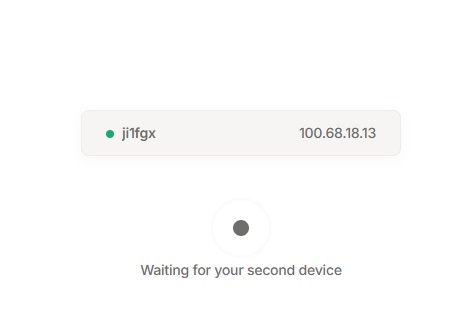 |
||
3. Install Tailscale on the Android smartphoneOpen Google Play on your smartphone, search for Tailscale, and install the official app. Launch the app and sign in with the same account you used on the Windows PC. If Android asks for permission to establish a VPN connection, review and allow it, then turn on the Tailscale connection. The smartphone interface differs from the Windows version, so follow the app's instructions.  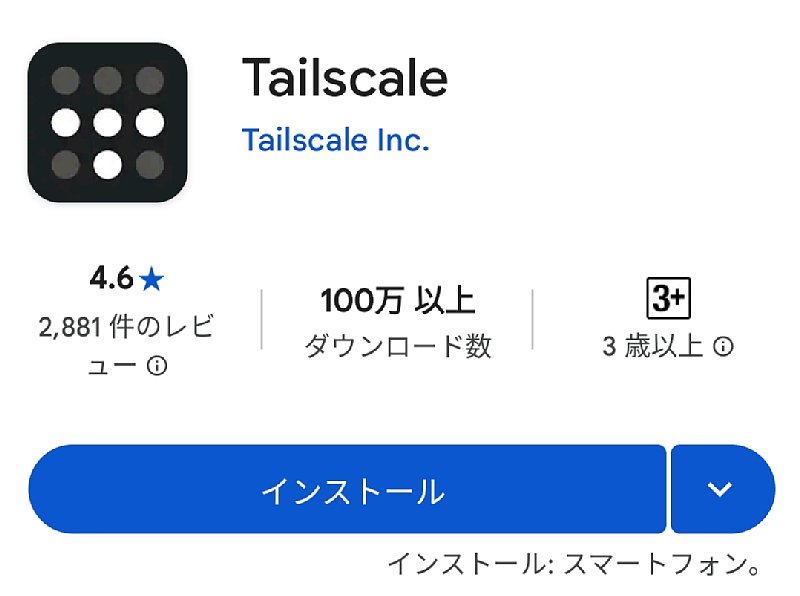 |
||
4. Check that both devices are added and connectedIn the Tailscale admin console, check that both the Windows PC and smartphone appear on the Machines page and show Connected. On the smartphone, you can also confirm that Tailscale is connected and the Windows PC appears in the device list. In the screenshots below, the PC is named EXIT NODE: None on the smartphone is fine for this purpose. You do not need to select an exit node just to access the PC. Seeing the devices in the list does not yet confirm that the application works, so continue with a browser connection test. 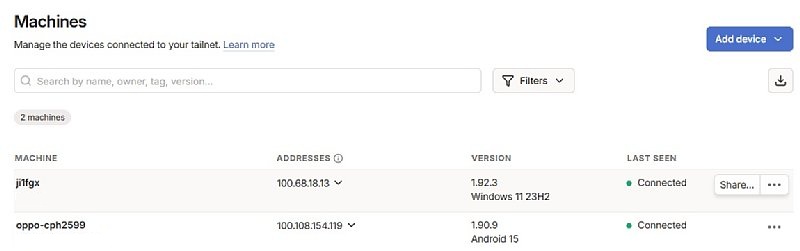 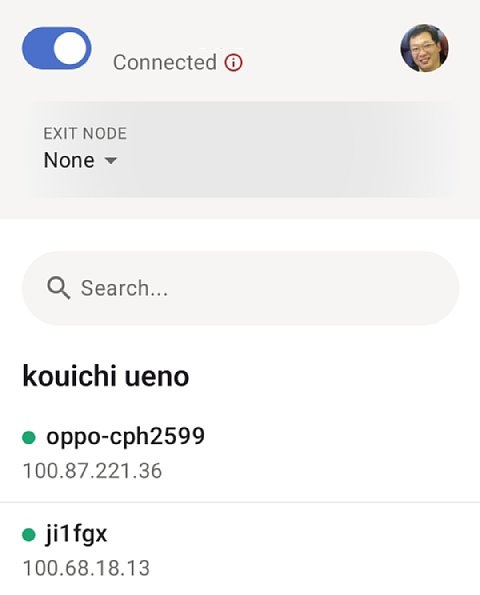 |
||
5. Open JTDX_Remote as you would from outside your home
This URL is an example based on the PC shown in the screenshots. Replace the IP address with your own PC's address. Port If the page opens and displays information such as logs, you have successfully accessed JTDX_Remote over the mobile network through Tailscale. Before testing any operation that causes a transmission, check your radio equipment and operating conditions. What to check if you cannot connect
Keeping the system available for remote useTo operate the system while away from home, the destination PC must be on, with JTDX_Remote and Tailscale running. Check the PC's sleep settings and what starts after a reboot. If access stops working, also check whether Tailscale is requesting reauthentication. This guide connects directly to the Windows PC running the application. If you later install Tailscale only on a separate Raspberry Pi and use it to reach a PC on your LAN, additional configuration, such as setting up a subnet router, will be required. References: Tailscale official documentation: Connect to devices / Official downloads / Pricing and plan terms | ||
| December 28, 2025 January 4, 2026 |