| English | Japanese |
|
|
Yesterdays access |
| Page Top | [Lily Diary.】 A diary of life in Mindanao. |
| 26/06/01 | Weather Monitor soft |
| 26/05/21 | JTDX Auto Run Ver0.7.6 BUGFIX |
| 26/04/20 | WSJT-X Auto Run Ver0.1.5 |
| 26/04/08 | ESP32-S3 software for using KENWOOD AT-300 with YAESU radios |
| 26/01/08 | WSJT-X Remote Operation |
| 26/01/07 | JTDX Remote Operation |
| 26/01/04 | log_reciver_Ver2.6.6 software |
| 25/11/16 | WSJT-X Automatic operation Ver0.1.1 |
| 25/11/04 | APRS TNC software Ver1.2 |
| 25/10/10 | APRS TNC software Ver1.0 |
| 25/09/23 | APRS TNC software Dire Wolf with Hamlib |
| 25/08/10 | Software List |
| 25/08/18 | JTDX Automatic operation Ver0.6.3 |
| 25/07/20 | A program to create one months worth of ADIF files from JTDX Ver2.6.5 |
| 25/07/13 | CQ Machine Program Ver1.5_2 |
| 25/07/10 | AutoCWType_Ver1.4.5 |
| 25/07/10 | JTDX Autonomous Driving Ver0.4.4 |
| 25/06/15 | Time setting Ver0.5 |
| 25/06/10 | Google, DeepL translation API |
| WSJT-X automated operation software Ver0.1.5 (2026/04/20) | ||||||||||||||||||||||||
|---|---|---|---|---|---|---|---|---|---|---|---|---|---|---|---|---|---|---|---|---|---|---|---|---|
WSJT-X_AutoRun_Ver0.0.6.zip WSJT-X_AutoRun_Ver0.0.8.zip WSJT-X_AutoRun_Ver0.0.9.zip WSJT-X_AutoRun_Ver0.1.0.zip WSJT-X_AutoRun_Ver0.1.1.zip WSJT-X_AutoRun_Ver0.1.4.zip WSJT-X_AutoRun_Ver0.1.5.zip 
Download count: 35 |
||||||||||||||||||||||||
| This program has been tested and confirmed to work with WSJT-X-30.0_improved_PLUSl. It didn't work properly with WSJT-X 2.6.1.
| ||||||||||||||||||||||||
 |
 |
|||||||||||||||||||||||
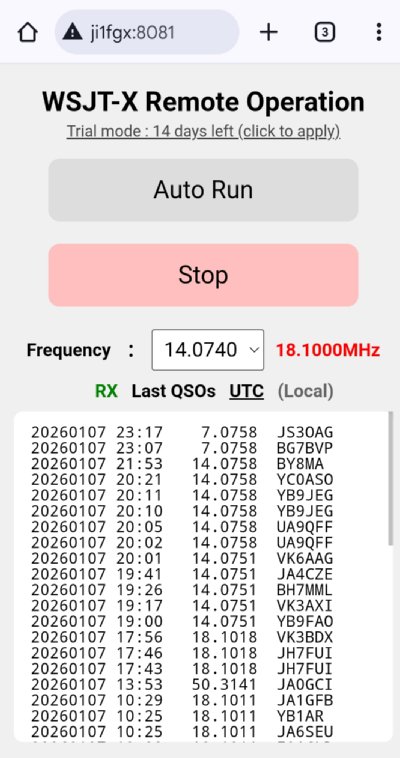
| WSJT-X remote operation will be released as trial software. After the 15-day trial period, you will need to obtain a license to continue using the service. The license application form can be accessed from either a smartphone or a computer. https://ji1fgx.com/en/license_apply.php 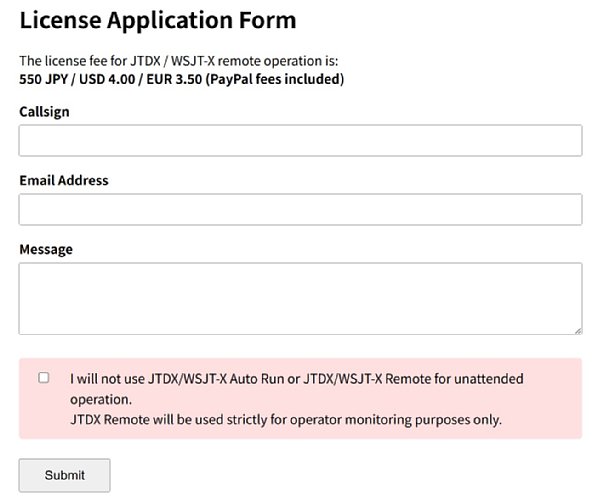 |
||||||||||||||||||||||||
| Running Install_WSJT-X_AutoRun.exe will open a Conbbox that allows you to switch between Japanese and English. The language you select here will be used to switch the language and icon of the shortcuts created on your desktop. The program itself automatically detects the OS language and switches between Japanese, English, and German. 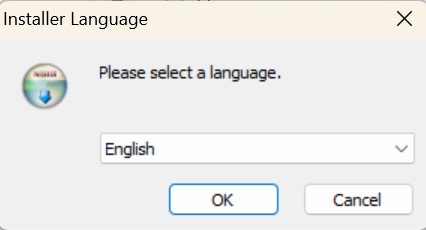 Choose the installation directory. I think the default settings are fine. 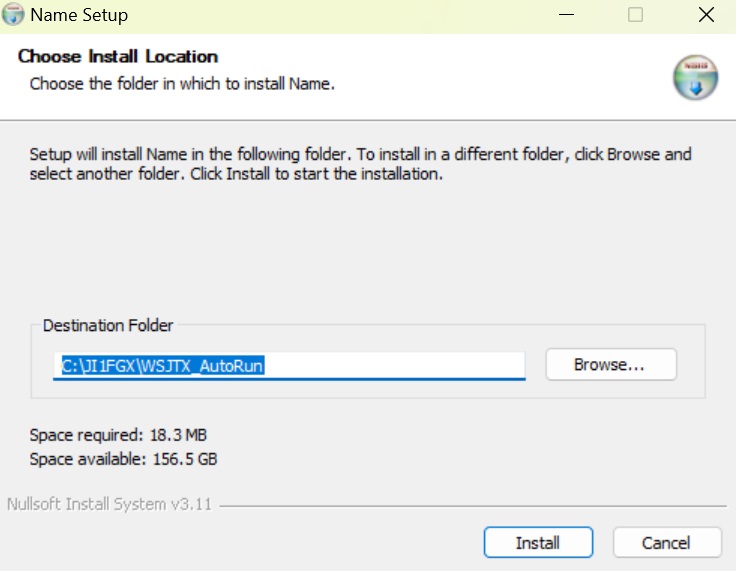 For subsequent installations, settings.ini will either be replaced or displayed. If you have already recorded WSJT-X coordinates, please select 'no'. If you select 'yes', settings.ini will be copied to settings.ini.backup. 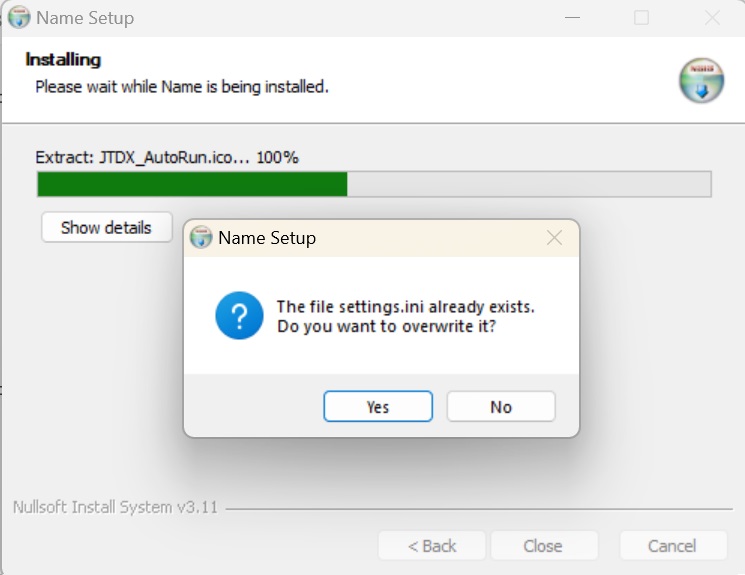
|
||||||||||||||||||||||||
WSJT-X Autonomous Driving.This program performs only these five actions on the WSJT-X program. |
||||||||||||||||||||||||
| caveat. The development is solely for the purpose of assisting with operations in front of a computer, and is not intended for unmanned operation. Apparently, some awards prohibit automated management. Please ensure that your operation complies with the radio wave regulations of your country. In Japan, we've been using packet radio TNCs for 24-hour unmanned operation, so I don't think there will be any problems. I, as the creator, will not take responsibility for anything that happens. Please use this at your own risk. The design philosophy of WSJT-X and JTDX excludes automated (unattended) operation, and we are aware that this software has received various criticisms. |
||||||||||||||||||||||||
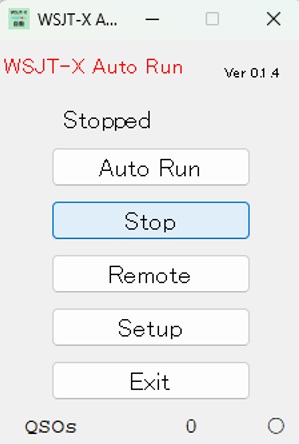
This GUI will launch when you start WSJT-X_Automatic Operation.v0.1.1.
|
||||||||||||||||||||||||
| If you send out a CQ call and there is no response, and the timeout occurs, press 'Stop'-'Send permission' to send out another CQ call. If you call another station or time out during a retry of a QSO, the system will automatically press 'Stop', then abandon the call, and press 'Send permission' to send a CQ. I think WSJT-X's 'Tx watchdog timer' is too long at 6 minutes.4 minutes.mosquito.5 minutes.I think a shorter version would be better. AlsoThe CQ signal will be emitted continuously, so even with autonomous driving, monitoring is necessary.  |
||||||||||||||||||||||||
| When the Log QSO window opens, 'OK' is automatically pressed to end the QSO. As a function of WSJT-X, if you cannot send the next CQ, press 'Stop' and then 'Send permission'. 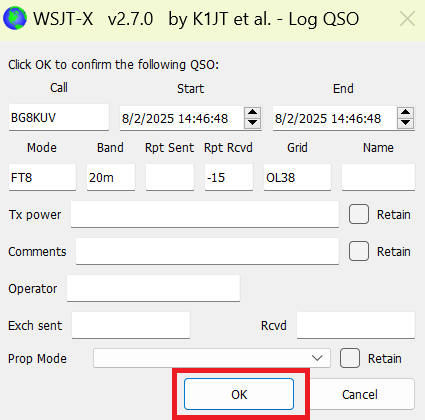 |
||||||||||||||||||||||||
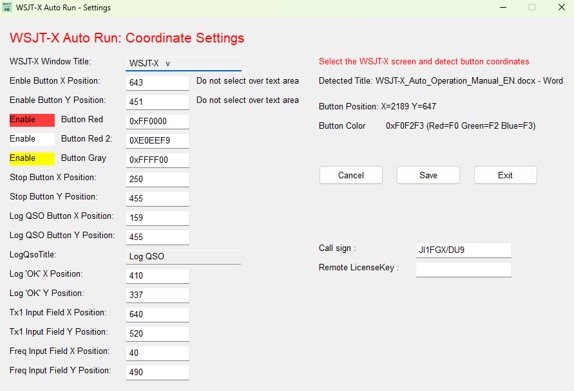
| Before using it, you need to obtain the button's coordinates using 'setting'. Also, if you change the window size of WSJT-X, you will need to recalculate the coordinates in the settings. The following is the screen that opens when you click 'setting'. Please activate the WSJT-X window and then check the following items. After you've finished getting the coordinates, press 'keep', then press 'end'.WSJT-X.and.WSJT-X automatic operation.Please restart.
 |
||||||||||||||||||||||||
|
||||||||||||||||||||||||
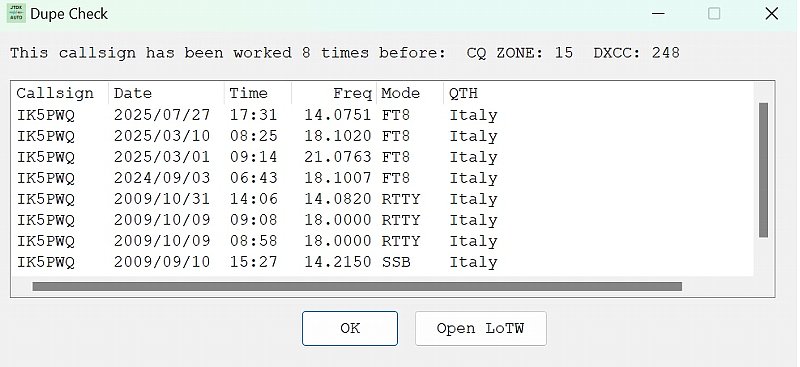
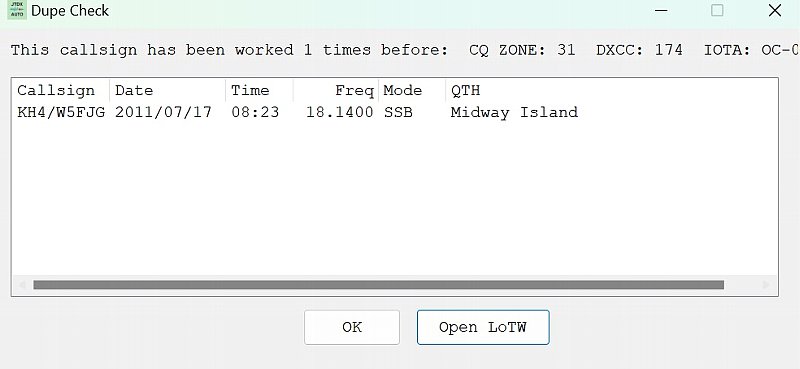
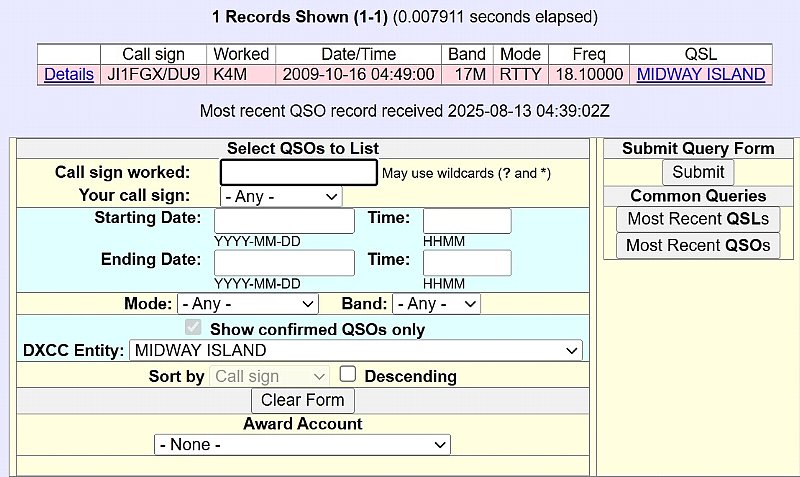
| Log search and entity search. Enter your callsign in the Tx1 field (either through normal communication or by manually entering it) and press Enter. When entering manually, simply enter the callsign or prefix you are looking for. This feature can be used even without the 'Autonomous driving'. 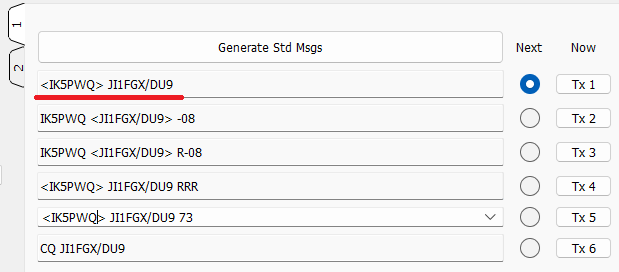 |
||||||||||||||||||||||||
 |
||||||||||||||||||||||||
 |
||||||||||||||||||||||||
 |
||||||||||||||||||||||||
 |
||||||||||||||||||||||||
| April 19, 2026. April 23, 2026 | ||||||||||||||||||||||||