DownloadPrevious version: WSJT-X_AutoRun_Ver0.0.6.zip Previous version: WSJT-X_AutoRun_Ver0.0.8.zip Previous version: WSJT-X_AutoRun_Ver0.0.9.zip Previous version: WSJT-X_AutoRun_Ver0.1.0.zip Previous version: WSJT-X_AutoRun_Ver0.1.1.zip Previous version: WSJT-X_AutoRun_Ver0.1.4.zip Previous version: WSJT-X_AutoRun_Ver0.1.5.zip
WSJT-X_AutoRun_Ver0.1.6.zip
 Downloads: — |
Getting started and remote operation
From installation to your first session
WSJT-X AutoRun assists with repetitive operating tasks, such as re-enabling transmission and confirming QSO logs. Ver0.1.6 also supports remote control and status monitoring.
- Extract the downloaded ZIP file and run the installer.
- Start WSJT-X, then register the button coordinates and other required information in Settings.
- Save the settings, restart both programs, and follow the operation tests below.
- To view logs remotely, install log_receiver and check its connection.
Use the 15-day trial to check that button operations and log display work correctly on your system.
This program has been tested with WSJT-X-30.0_improved_PLUSl.
It did not work correctly with WSJT-X 2.6.1.
WSJT-X AutoRun has been updated toVer0.1.6.
Ver0.1.6 adds WSJT-X remote operation to the existing operating assistance features.
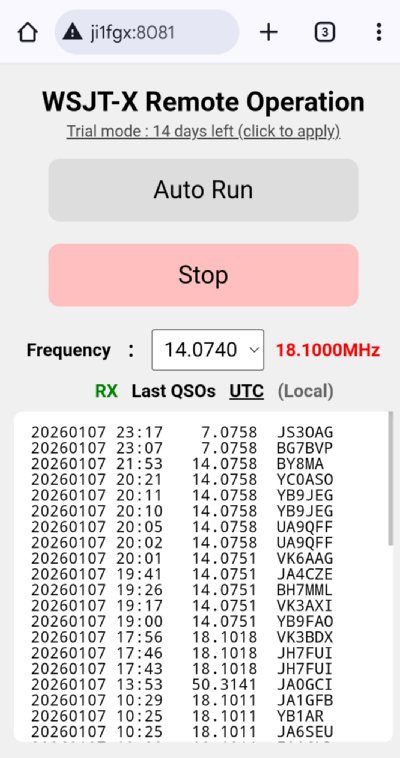
From a smartphone or another computer, you can controlWSJT-X AutoRunand check its operating status.
View transmit/receive status and recent QSO logs to keep track of your station.
Features
- Start and stop automatic operation in WSJT-X AutoRun
- Change the operating frequency
- Display transmit/receive status
- View the latest 50 log entries
- Switch log times between UTC and local time
With a VPN connection, you can monitor WSJT-X remote operation while away from the station.
Before connecting from outside your network, check the VPN connection on both the station computer and the device you will use remotely.
Tailscale VPN software
Software required to display logs during WSJT-X remote operation
log_receiver_Ver2.6.6 |
|
Main and remote control screens
|
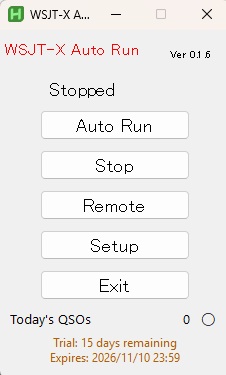
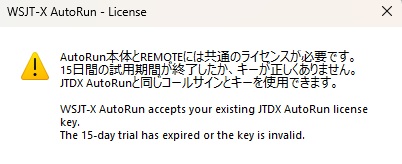
15-day trial and licensing WSJT-X AutoRun Ver0.1.6is now trialware.
Check that the program works in your environment during the 15-day trial. A license is required to continue using the program after the trial ends.
|
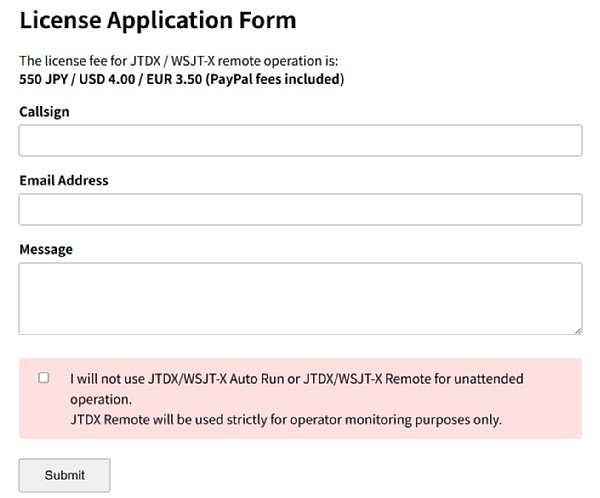
Applying for a license
The license registration fee is USD 4.00.
Please pay via PayPal.
You can apply for a license from either a smartphone or a computer.
https://ji1fgx.com/en/license_apply.php
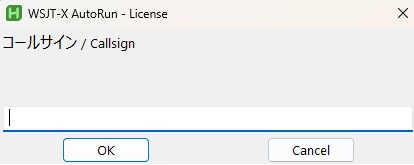
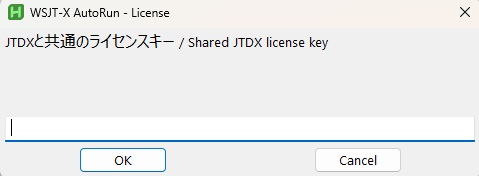
Your license key will be emailed within 1–2 days after your application and payment have been confirmed. Enter the key together with the callsign you registered.
|
Activation after the trialAfter the 15-day trial ends, you must enter your callsign and license key when starting the program.
|
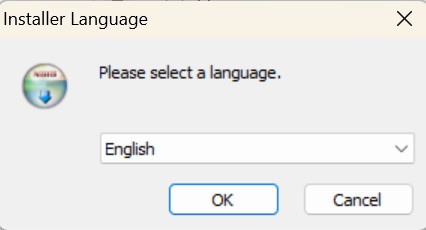
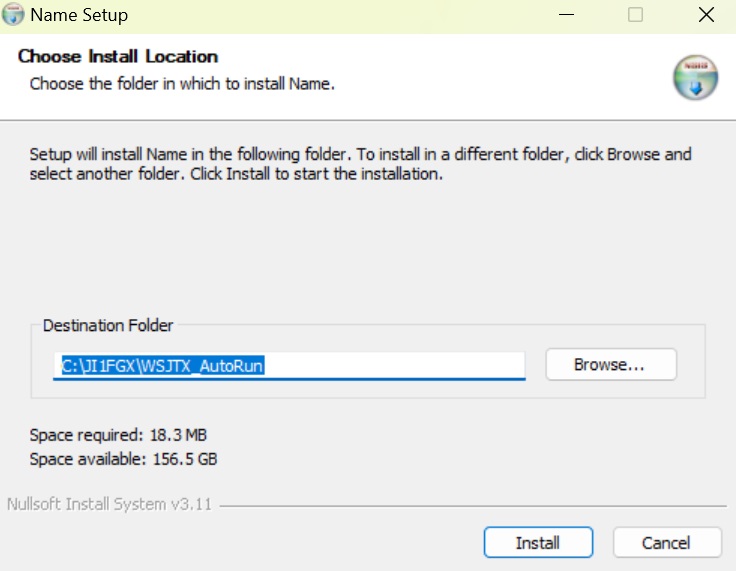
Installation and included files Run Install_WSJT-X_AutoRun.exe to open the language selection screen for Japanese or English.
This selection determines the display name and icon of the desktop shortcut.
The program itself detects the OS language and automatically switches between Japanese, English, and German.
Select the installation folder.
Normally, you should use the default installation folder.
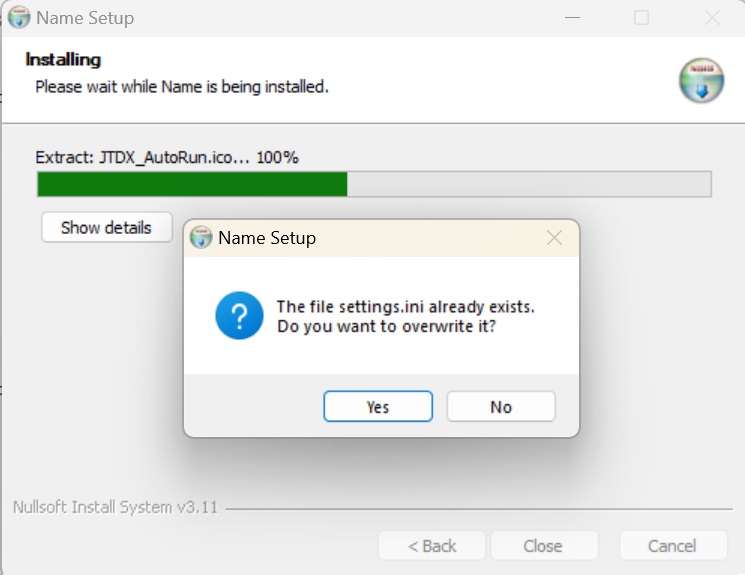
When reinstalling, you will be asked whether to replace the settings.ini configuration file.
Choose No to keep previously registered button coordinates and other settings.
If you choose Yes, the existing settings.ini is copied to settings.ini.backup before being replaced.
| WSJT-X AutoRun program |
WSJT-X_AutoRun_Ver0.1.6.exe |
| WSJT-X remote operation program |
wsjt-x_remote_0.0.4.exe |
| Setup program |
WSJT-X_AutoRun_Setup_ver1.0.5.exe |
| Installer |
Install_WSJT-X_AutoRun.exe |
| Look up a country by callsign prefix |
find_entity_service.exe |
| Convert an ADI file to a database file |
adi_to_db.1.0.exe |
| SQL database for Entity search |
dxcc_list.db |
| Japanese manual |
WSJT-X_自動運用プログラムマニュアル.pdf |
| English manual |
WSJT-X_Auto_Operation_Manual_EN.pdf |
| Japanese icon |
WSJT-X自動.ico |
| English icon |
WSJT-XAutoRun.ico |
|
How automatic operation works
| Operation |
After you click the WSJT-X “Enable Tx” button, a timeout causes the program to click “Enable Tx” automatically.
If a timeout occurs while calling another station or retrying during a QSO, the program automatically clicks “Stop”, followed by “Start transmission”.
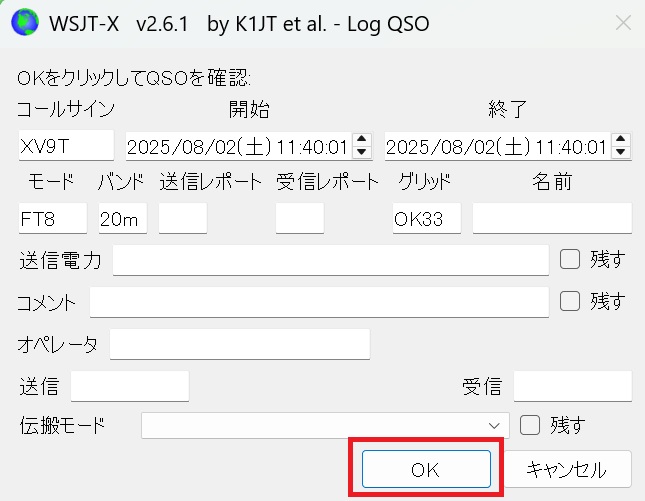
After RR73 is sent to complete a QSO, the “Log QSO” windowopens, and the program clicks “OK” automatically.
Clicking “Stop” on the console stops automatic operation. Double-clicking also turns off Enable Tx.
The WSJT-X window position is retained. The next time the program starts, the window appears at the position it occupied when the program was closed.
The QSO count is retained when the program is closed and restarted.
The QSO count resets to zero when the date changes. |
WSJT-X AutoRunassists with repetitive operating tasks through the button operations and status checks described above.
|
| |
Warning — Before using this software
This software is intended to assist an operator at the computer. It is not intended for unattended operation.
If you plan to apply for an award, check the award rules concerning automatic operation in advance. Operate in accordance with the radio regulations of your country. Check applicable laws and license conditions before deciding whether a particular form of operation is permitted.
The author accepts no responsibility for any problems arising from use of this software. Use it at your own risk.
The design philosophy of WSJT-X and JTDX includes avoiding automatic, unattended operation. I understand that this software may therefore attract criticism.
|
|
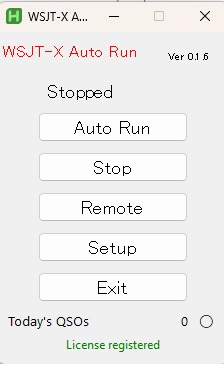
Understanding the control panel
The following control panel appears when you start WSJT-X AutoRun.
| Auto Run |
Starts monitoring WSJT-X at the configured timer interval. |
| Stop |
Sets the timer to zero and stops monitoring.
Double-click to stop transmission as well. |
| Remote |
Monitor remotely from a smartphone or computer. |
| Settings |
Configure the coordinates of the buttons in the WSJT-X window. |
| Exit |
Closes the program. |
| Today's QSOs |
Number of stations worked during automatic operation.
Resets to zero when the date changes. |
| License status |
The trial expiration date is shown when no license is registered. |
| |
During automatic operation, a red●appears at the bottom right. |
|
What happens after a timeout If a CQ receives no reply and times out, the program clicks “ Stop”, then “ Enable Tx” to resume calling CQ.
If a timeout occurs while calling another station or retrying during a QSO, the program automatically clicks “ Stop”, abandons that call, and then clicks “ Enable Tx” to call CQ.
For the WSJT-X “ Tx watchdog timer”, I suggest a shorter setting of 4 minutesor5 minutesrather than 6 minutes.
Please note: CQ calling continues indefinitely, so you must monitor the station even during automatic operation.
|
Automatic QSO loggingWhen the Log QSO window opens, the program automatically clicks “ OK” to complete the QSO.
To move on to the next CQ, it clicks “ Stop”, followed by “ Enable Tx”.
|
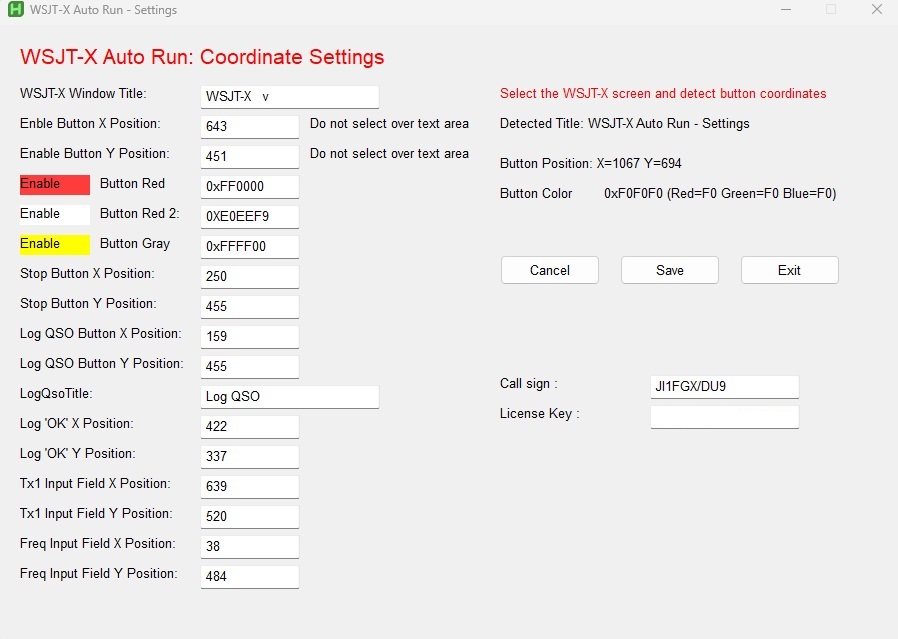
Initial setup: registering button coordinatesBefore first use, register the coordinates of each WSJT-X button in Settings.
If you resize the WSJT-X window, register the button coordinates again. The program operates using screen coordinates. Check the display and settings before starting automatic operation.
The screen below opens from Settings.
Activate the WSJT-X window, then check the following items.
After registering the coordinates, click Save, then Exit, and restart WSJT-X and WSJT-X AutoRun.
|
Capture the red color used during transmission and the white and yellow colors used when stopped.
Check whether the default values work, and adjust them if necessary. |
| Register the coordinates of the Stop button. |
| Register the coordinates of the Log QSO button. |
| Register the coordinates of the OK button in the logging window. |
Register the coordinates of the Tx1 input field.
Used for QSO log search and Country search. |
| Freq field: register the coordinates of the input area in the Freq combo box. |
| Callsign: required for WSJT-X remote operation license registration. |
| Remote license key: enter the key for WSJT-X remote operation. |
|
Testing after setup
| Operation tests |
Click Auto Run on the console.
Click Enable Tx in WSJT-X so that it turns red.
Double-click Stop on the console.
If Enable Tx turns white, its coordinates have been registered correctly. |
Click Auto Run on the console.
Enter a test string in the WSJT-X Tx1 field.
Click Enable Tx in WSJT-X so that it turns red.
Click Halt Tx so that Enable Tx turns white.
Wait until the text in Tx1 disappears, Enable Tx turns red, and CQ transmission begins.
If this happens, the Stop button coordinates have been registered correctly. |
|
Log search and Entity searchLog search and Entity search
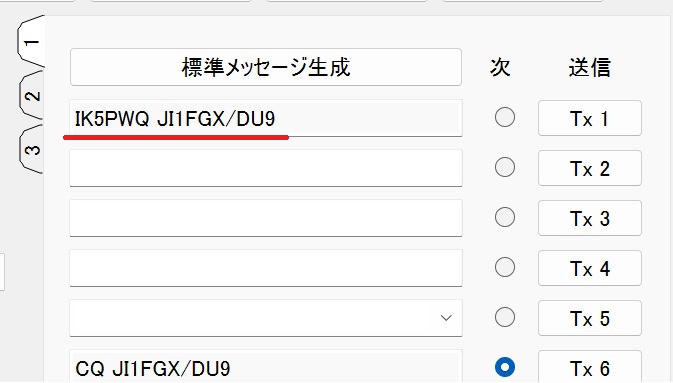
Enter a callsign in the Tx1 field during normal operation or manually, then press Enter.
For a manual search, enter either the callsign or just the prefix you want to look up.
This feature works even when Auto Run is not active.
|
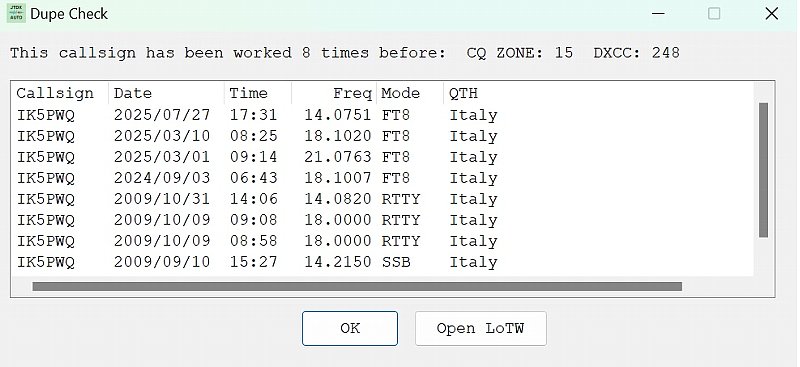
Checking QSO history and country information
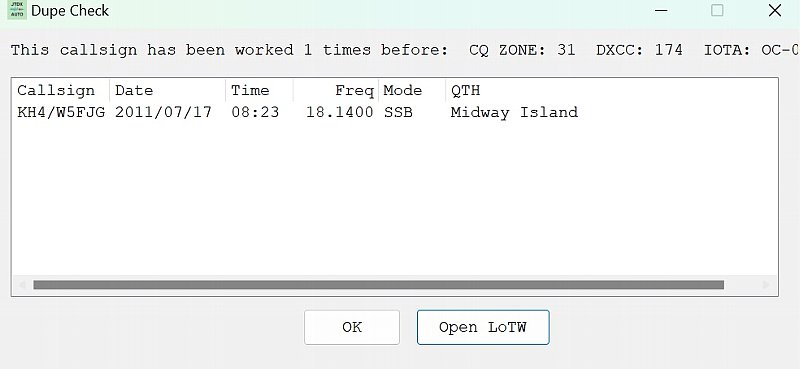
If you have worked the station before, the QSO list, CQ Zone, and DXCC number are displayed.
For the displayed result,double-click the callsignto open QRZ.COM.
Double-click the country nameto open Google Maps.
This feature was added to make it easier to check whether you have worked a station before.
Right-click the country name to check whether you have previously worked that country. |
|
Searching by prefix
If there are no previous QSOs, the result is shown as not worked.
You can also search using just a prefix.
This feature supplements the country information shown by WSJT-X for stations calling CQ.
It makes it easy to find out which country a prefix belongs to and learn more about that country. |
|
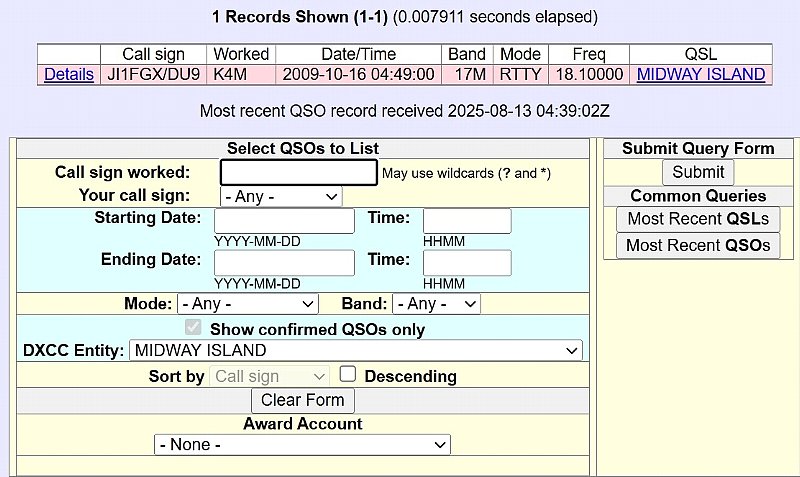
Checking LoTW
Click Open LoTW to open LoTW and check confirmation status.
You need a LoTW account to use Open LoTW. |
|
Importing previous logs
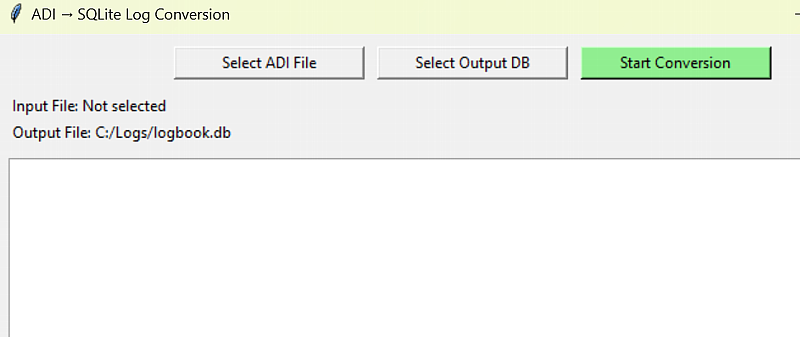
To use log search, convert your previous ADI log files into an SQL database.
ADI files from JTDX, WSJT-X, and Turbo HAMLOG have been tested.
In the extracted folder, run theadi_to_dbconversion program.
Import previous logs by converting the ADI files.
To record new QSOs in real time, install the separately distributed log_receiver.
The separately distributedlog_receiver_Ver2.6.6is required. Download here
|
|
|